






















































Subfolders
Latest "Tech" Articles


 Michael Kupietz, chief Kwit
 @michael · Follow
I've just discovered BullshitAI-GeneratedContentFarm.com is available. I'm not registering it.
I feel like this might be the most adult thing I've ever done.
4:15 PM · July 9, 2026
1Reply Copy link
Posted inBlog Post Posted in genres
This is a test.
April 29, 2026Once upon an Indieweb dreary, while I pondered, weak and weary,
Over many a quaint and curious volume of forgotten CSS,
While I coded, nearly hacking, suddenly there came SYN ACKing,
as if packets gently attacking, attacking at my firewall ports,
"'Tis some webmention", I muttered, "SYN ACKing at my firewall ports,
only this and nothing less."
Eagerly, I wished the morrow, for in vain, I hoped to borrow,
from #Cafe, surcease of sorrow—sorrow for the lost IPv4—
For the rare and radiant spec whom the angels name IPv4—
This is only a test, please ignore.
Mastodon & BSky followers: I’m closing these current accounts—pls read for updated account info
A note to the very small handful of people who read and occasionally even repost the website blog items and articles that I've been syndicating from my website, where I'm currently writing this, to a small clickable link on a Mastodon post or a somewhat more human-readable excerpt on Bluesky:
As of today I will no longer be syndicating my content to my current Mastodon and Bluesky accounts at @michaelkupietz.com@michaelkupietz.com on Mastodon and michaelkupietz.com.web.brid.gy on Bluesky. This will likely be the last post to those accounts.
The reason I have to retire those accounts is that they're controlled by the syndication service I was using, and I don't actually have full access to them myself. I'm turning off that service, so I can't use them at all.
But, as apparently a small handful of people do have an interest in occasionally seeing links to things I write delivered…
New WordPress Plugin: Kupietools Usernote Shortcode Plugin
April 19, 2026I've just posted an alpha of a small new WordPress plugin to my Github: KupieTools Usernote Shortcode.
Basically, I wanted to leave myself a note in a post, so I can see it on the front end when I view the post, but nobody else will. Now I can do this with [usernote]Note to myself here[/usernote]. It also allows specifying visibility by username or WordPress account role, like this: [usernote users="alice,bob" roles="administrator"]Note to Alice, Bob, and all administrators here[/usernote]
This is an alpha release, containing just the basic functionality I need this afternoon. In the future it will allow you to set defaults in a panel in the KupieTools admin settings page, like some of my other plugins. Right now you have to change them in the plugin code.
Gmail Pushing My Emails Out Of The Way To Tell Me What My Emails Say
March 16, 2026Well, this is a new one. Today my gmail has started moving my emails out of the way to prioritize giving space to "AI Overviews" telling me what the email says. The summaries are longer than the actual email.
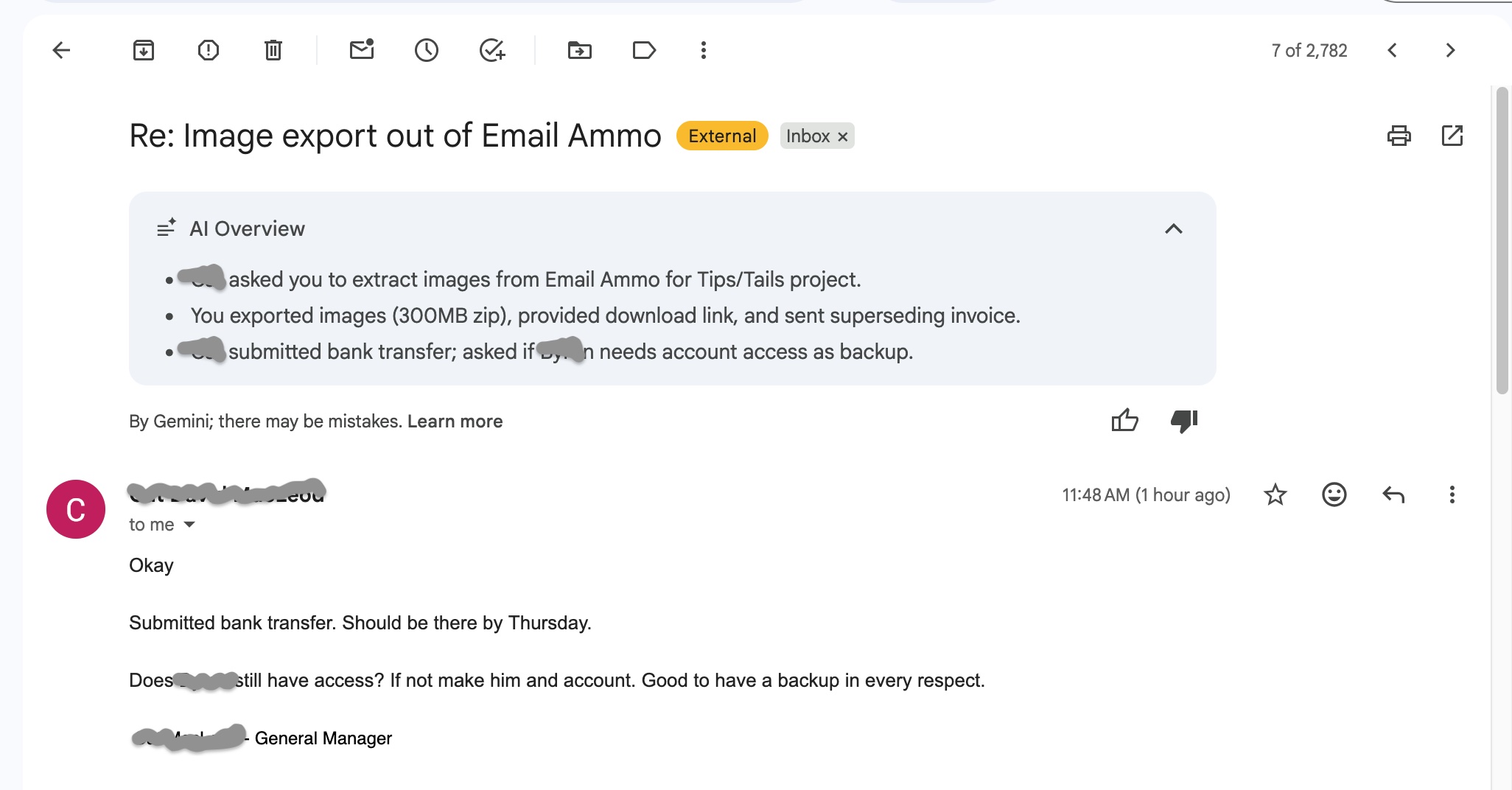
Imagine I started this three-sentence post with a "summary" that spent four sentences telling you what the post says. That's about how this strikes me.