Creative Productions, Arrangements and Operations • Art, Technology and Amusements. Software Engineer and certified FileMaker Pro developer and full-stack web developer by day, https//www.kupietz.com
If CSS animations cause a layout shift even if they're on compositable ettributes, look for clip paths, overflow:hidden, or css filters on them or their ancestors.
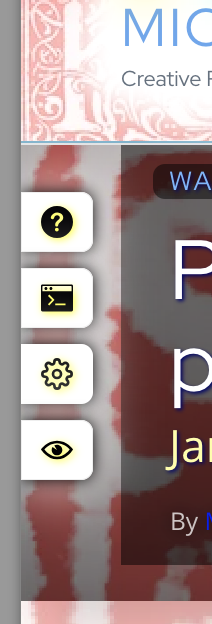
So, I had a crazy problem. You'll notice that there's various draggable elements on this site... such as the "Kupietools" plugin tabs seen at left, the occasional "the site is being worked on right now" notices that pop up, etc. You can drag them around with your mouse.


This is done with a plugin (also available as a standalone javascript module, a few versions behind the plugin as I write this) that retrofits code onto various HTML elements by giving the plugin the classnames it needs to make interactive.
I was doing some optimization on the site loading to speed things up, such as getting WordPress to load a lot of CSS file late so as not to interfere with initial page load stats. (This is a whole art, beyond the scope of this article.) Suddenly…
I got the error "The number of lookups on your SPF record exceed the allowed limit of 10. This will result in emails failing SPF authentication" in my Cloudflare DNS dashboard.
My spx record for, say, kupietz.com was "v=spf1 include:_spf.myEmailHost.com include:kupietz.com ~all"
Turns out, the problem is, every include can get parsed to be multiple servers. the include:kupietz.com apparently causes a recursive loop, creating more than 10 lookups. I updated it to "v=spf1 ip4:[my server's external IP address] include:_spf.google.com ~all", removing the recursive lookup, and adding my server's IP so it can send me administrative notices.
Also today my ISP changed my IP address unexpectedly... all DNS updated.
To make a complete local backup of a remote WordPress install over SSH, you need to perform two distinct steps:
Download the files (using rsync).
Export and download the database (using mysqldump piped through ssh).
Here is the step-by-step guide.
Prerequisites
SSH Access: You need the username, host (IP or domain), and password (or SSH key) for the remote server.
WordPress Path: You need to know where WordPress is installed (e.g., /var/www/html or /home/user/public_html).
Database Credentials: You will need the database name, user, and password. (I will show you how to find these below).
Step 1: Find Database Credentials (Optional)
If you don't know your database login details, run this command to read them from your remote wp-config.php file: ssh user@remote-server.com "cat /path/to/wordpress/wp-config.php" | grep 'DB_'
Note the DB_NAME, DB_USER, and DB_PASSWORD for Step 2.
I had a truly maddening problem where my /embed/ functionality was sometimes returning full pages to CURL commands and online services like redirect-checker.org, etc.
It turned out, it was Yoast's URL parameter stripping. I had failed to update Yoast's settings with some new parameters I was using, and what Yyoast never tells you is that when you're logged in, it lets everything work fine, and only strips parameters for non-logged in users. It just lets you proceed on your way thinking everything is working fine until you can't figure out why curl -I https://mysite.com/blah?param1¶m2 is getting a 301 redirect while https://mysite.com/blah?param1¶m2 is loading fine in your browser. This is especially fun on sites like mine where things like /embed/ and ?embed get written back and forth to each other internally.
I lost several hours to this.
Yoast's docs say there's a way of registering parameters but,…
The problem was, I needed to make some changes to how that code functioned, and I couldn't find where I had added the script that did that.
Long story short: I temporarily added this script to the head of the page, and then reloaded it with an #anchor added to the URL, in this case [code]https://michaelkupietz.com/literally-hundreds-capsule-reviews/#puzzlehead[/code]:
[code] // Override the open property setter to catch when…
Here’s a guide to all currently available CSS units, with explanations and common use notes. This includes all CSS units listed in MDN Web Docs as of 2025aug15.
I use the uBlock Origin browser plugin to filter my LinkedIn Posts, Notifications, and Comments to hide anything containing objectionable topics. uBlock Origin allows you to add custom rules to block web content.
How to use and setup uBlock Origin is beyond the scope of this post. It's not hard, figure it out and then come back. What you want to know how to do is add your own custom rules.
Let's say, for purposes of these example, I want to block all mentions of someone named Grump.
The simplest version: block a single word
The following three rules hide Posts, Comments, and Notifications, respectively, that contain the word "grump", whether as a separate word, or as part of other words, such as "grumpier".
For confused first-time visitors and other people still acclimating, here is a description of these little tabs to the left, as well as some other features of the site.
Open "Expert Mode" CLI Navigation - this give you the option to switch your browser's display to an old-fashioned terminal mode where you may browse this site, view pages and images by typing text commands. Just like how we used to browse the web back in 1978!
Open Visual Settings - This gives you controls to customize the visual display of this website to your liking: turn up or down the brightness, contrast, color temperature, hue, saturation, dark mode, and earthquake. Settings are saved per browser tab, so they will be remembered for your whole visit.
Open My Eyes - Have you ever been engrossed in your work, when you suddenly realize someone is staring at your screen, watching everything you do over your shoulder? If not, this simulates the experience.
Open Help - This help popup, silly! You just clicked it! Do you not remember?
New - Draggable elements! Several elements on this website, including these tabs, this popup message, and the "Hire Mike" badge in the lower right, can be dragged around with your mouse, to avoid them blocking content. Positions are remembered per tab, so as you navigate around the site, they will stay in the same place for your whole visit.
Enjoy!
CLI Website Navigation
Are you sure you want to switch to viewing this website in the "expert mode" command-line interface?
This will switch to a terminal emulator, load this page, and allow you to browse this website and view its contents by typing text commands.
Plus there might be, y'know, some fun stuff hidden in there. Just for geeks.